MK4 Standard Operating Procedure
Pre-Start Checklist
- Build plate is clean and properly seated. The spring-steel sheet is magnetically attached.
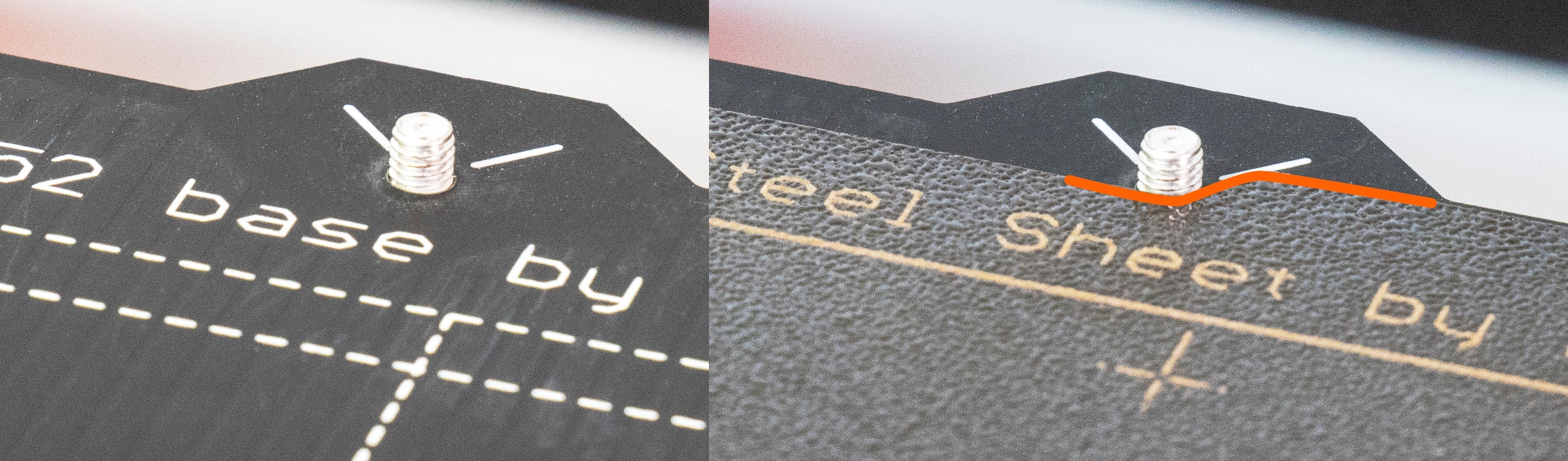
- The sheet is aligned so the alignment notch sits against the two locating pins at the top of the heatbed.
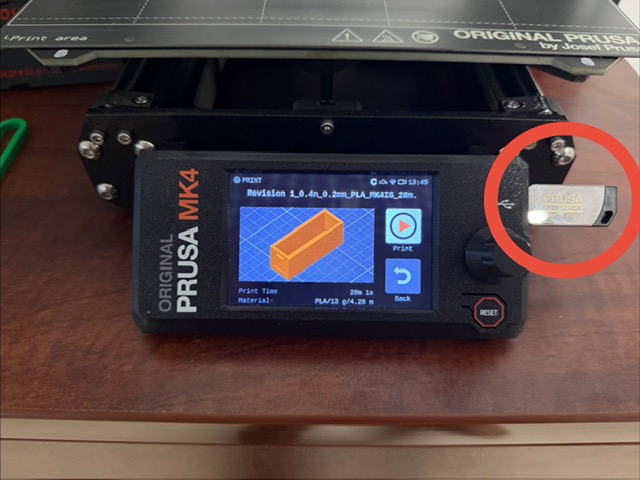
- G-code file is copied to a USB drive, and the USB drive is inserted into the USB port on the side of the MK4's display.
- Long hair, loose clothing, and jewelry are kept away from the printer.
- Filament profile matches the filament loaded in the printer, with the correct print temperature and bed settings for that filament.
Preparing a Print
We recommend using PrusaSlicer.
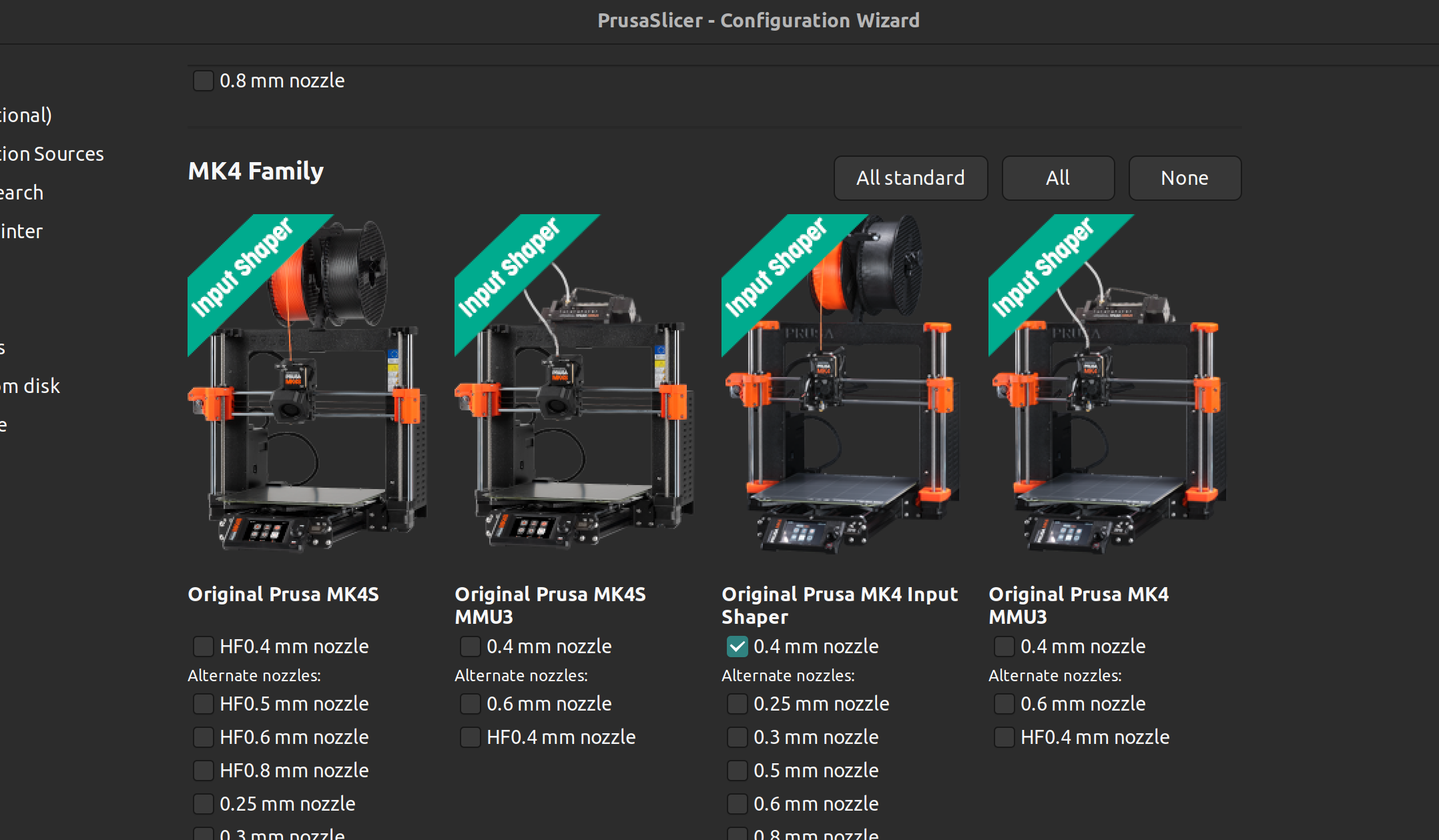
- In PrusaSlicer, choose the printer profile named Original Prusa MK4 Input Shaper and a 0.4 mm nozzle.
- Select a filament profile that matches the filament loaded in the printer (the "Generic" profiles are usually fine for basic use).
- If you're new to PrusaSlicer, see Prusa's guide: First print with PrusaSlicer
Starting a Print (USB)
- Make sure the build plate is clean and properly seated. The spring-steel sheet is magnetically attached.
- Align the sheet so the alignment notch sits against the two locating pins at the top of the heatbed.
- Copy your G-code file to a USB drive and insert it into the USB port on the side of the MK4's display.
- Use the control knob (turn to move, press to select) to find your file and press Start.
After Your Print
- When the print finishes, remove the spring-steel sheet by grasping the corners (avoid touching the print surface with bare hands).
- Gently flex the sheet to release parts; use a plastic scraper for stubborn pieces.
- Do not use metal tools that could gouge the spring steel surface.
Wireless Printing
The MK4 supports Wi‑Fi printing, but wireless access is restricted. To request permission to print wirelessly, submit this Form.
- The form is required so we can verify user training and ensure proper filament/setup.
- If approved, you'll receive instructions and the steps needed to upload prints over Wi‑Fi.
Troubleshooting
- Poor adhesion: make sure the bed sheet is clean and aligned; consider adding a brim or Raft for small footprints.
- First-layer issues: slow down the first layer and verify Z‑offset in PrusaSlicer/profile.
- Stringing: lower print temperature or enable retraction in slicer settings.
- If the printer reports a mechanical or sensor error, do not attempt physical repairs—contact the DTC lead.
Warning
- Keep long hair, loose clothing, and jewelry away from the printer while it's running.
- The bed and nozzle become very hot—do not touch until they cool.
- Print in a well-ventilated area, especially for filaments like ABS or specialty materials.
- Use the correct print temperature and bed settings for the filament in use.
Post-Shutdown Checklist
- When the print finishes, remove the spring-steel sheet by grasping the corners (avoid touching the print surface with bare hands).
- Gently flex the sheet to release parts; use a plastic scraper for stubborn pieces.
- Do not use metal tools that could gouge the spring steel surface.